 AI Toy Bridge
What this step accomplishes
Have the AI actually call a device tool once. It is not enough for the AI to say "connected" in text: you should be able to see the tool call record in the chat app and confirm the result matches the device status in the App.
Before starting, keep AI Toy Bridge running and the device connected; complete the MCP configuration in your chat app and enable it for the current conversation.
First check the online status
Send in the chat:
Please use the MCP tool of AI Toy Bridge to check whether my device is online and tell me the available devices.
Check whether the chat app actually initiates a tool call. If it prompts for authorization, confirm the tool name and operation, then allow this call. If it returns that the device is online, the chat app can already find your device through MCP.
Then try a brief control command
After confirming the device is currently suitable for testing, send:
Please run at the lowest level supported by the device for 2 seconds, then stop. Before operating, first confirm which functions the device supports.
Different devices support different features and modes; refer to the capabilities returned by the tool. If the device responds for real and then stops, the complete "connect → configure → invoke" flow is complete.
Switching to a different chat app
No need to re-learn the whole flow. Still first make sure in-app control works, then enter the MCP address and user identifier from the app into the new software, enable the tools, and finally run an online check.
- Normal chat works, but there are no tool calls: Check whether the current assistant has MCP enabled and whether the model or API in use supports tool calls.
- Tools are visible, but it returns that the device is offline: Check whether the user identifier matches the app, and whether AI Toy Bridge is still running in the background and whether the device is disconnected.
- The AI says it has controlled the device, but the device does not respond: First check whether a tool call actually occurred, then go back to the app and run a local control test to distinguish between an AI configuration issue and a device connection issue.
If you run into problems, use the troubleshooting wizard to find the breakpoint, or see FAQ and troubleshooting.
To stop immediately
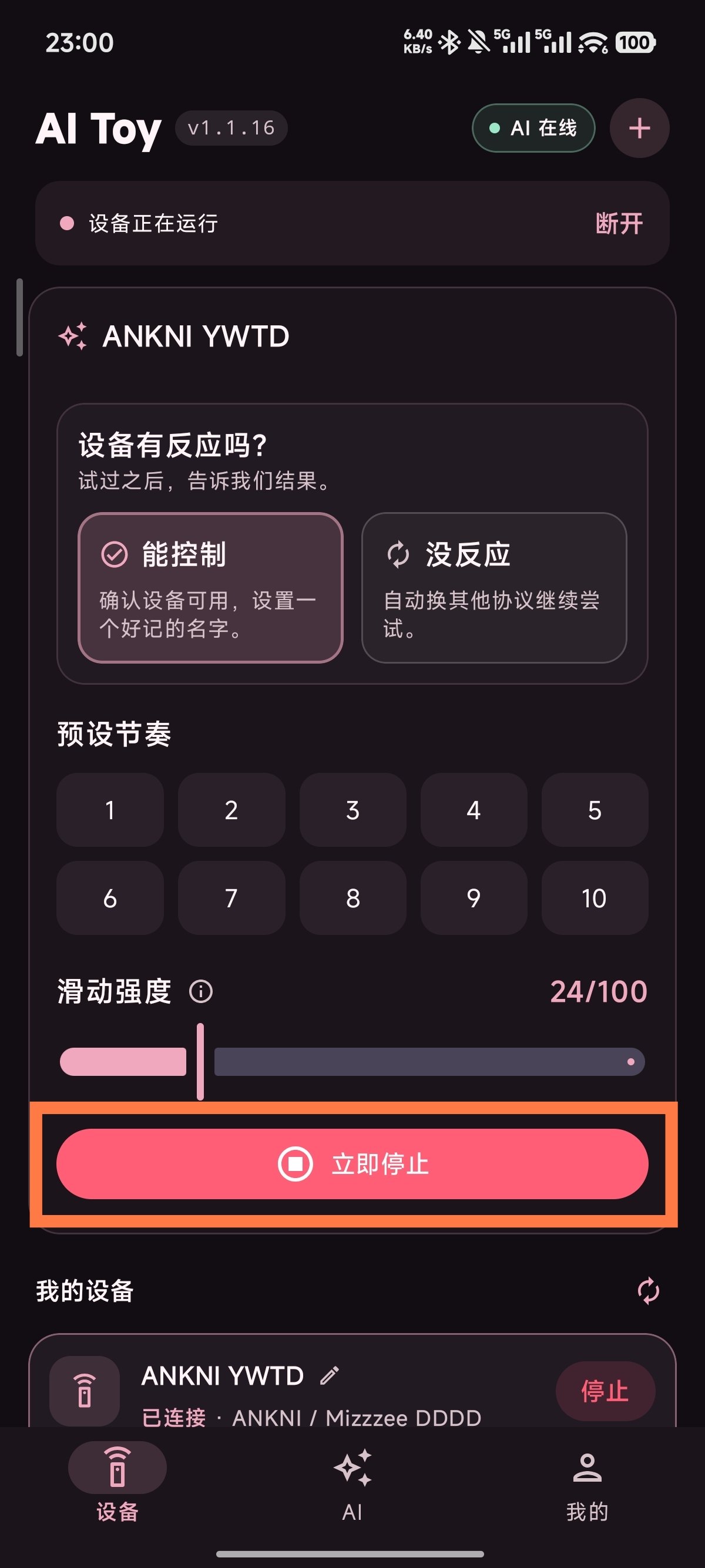
On the Devices page, tap Stop now, or simply power off the device.
How to use it next
You can continue the natural conversation and let the AI invoke the device when needed; each time you switch software, use the online check above to confirm the configuration. If you use RikkaHub, you can read Advanced Settings as needed. For usage quota and purchasing, see Membership and Usage Quota.